

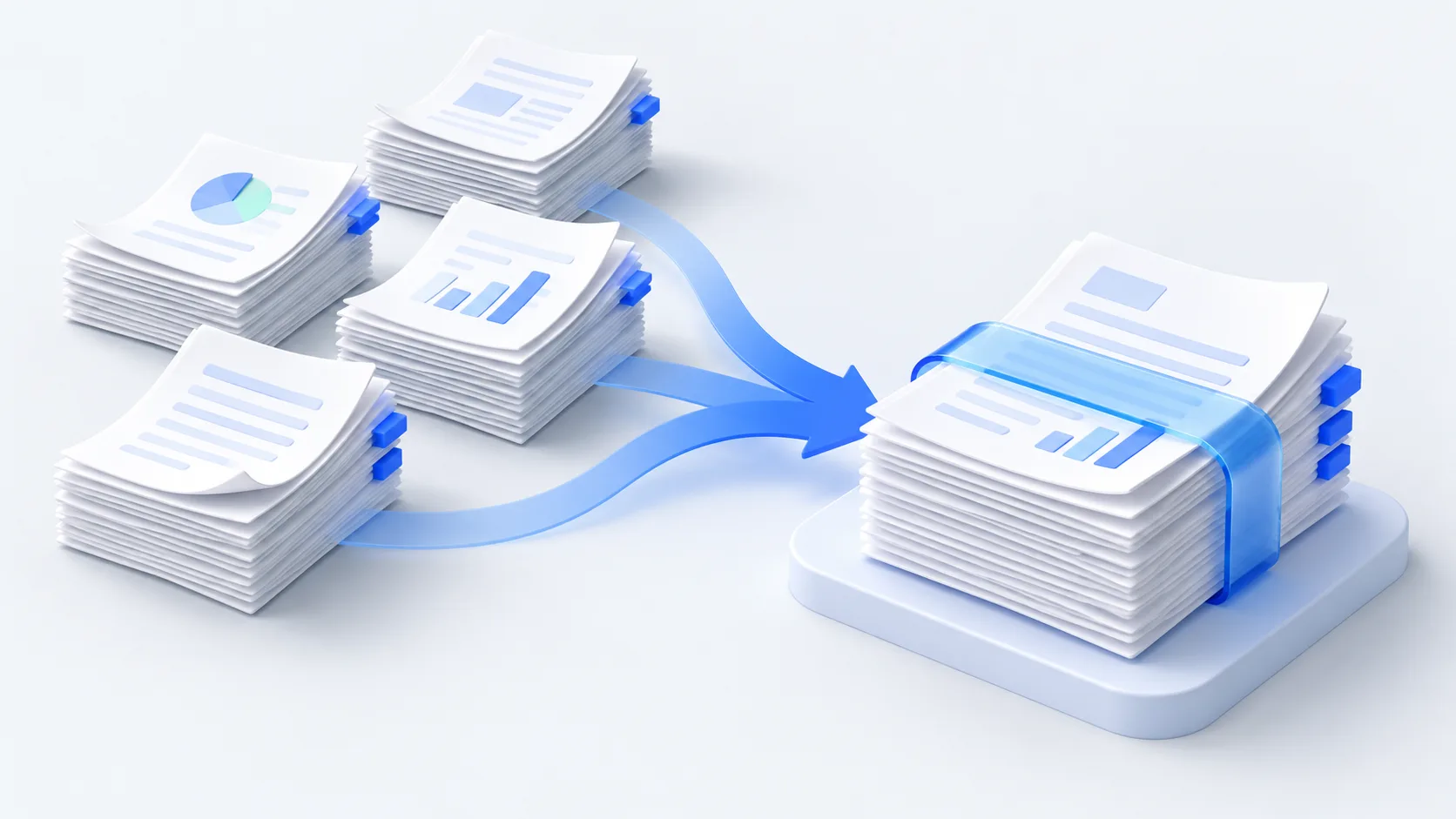
Need one submission file, but your documents are in several PDFs?
An application form, supporting evidence and an appendix often arrive as separate PDFs. If the recipient accepts only one file, you need to put the documents in order and check the combined size. Passing downloads between separate tools makes it easier to miss an attachment or send the wrong version.

Use this workflow when your PDFs are ready to submit together. Check the recipient’s instructions first: documents requested in separate upload fields should stay separate. If you only have one PDF to make smaller, the standalone PDF compression tool may be enough.
Why merge first and compress afterward?
Fix the document order before processing the final file, so there is one result to check. Merging preserves the original page sizes; it does not turn certificates, charts or mixed-size pages into A4 or crop them to fit.
Balanced compression may reduce the resolution of scanned images. Choose lossless first when small text or image detail matters. If the file is still too large, try strong compression and inspect the important pages again. The result depends on the source; there is no guarantee of a file below 2 MB or another upload limit.
How to use it
Add PDFs and arrange them
Choose the files to combine. Use drag-and-drop, move controls or filename sorting to set the order.
Choose compression and a filename
Start with balanced compression, or choose lossless for scanned details. Enter a useful download name.
Run and check the result
Select Merge and compress. Check the actual file size and important pages before downloading and submitting it.
Check the finished PDF before submitting it
A completed run does not establish that the recipient’s submission rules have been met. Open the result and compare it with those rules.
- Check the total page count, the first page and the joins between attachments for missing pages or ordering mistakes.
- Zoom in on names, identification numbers, small text and charts, especially after strong compression.
- Compare the final file size with the upload limit. Compression savings are measured against the merged document.
- Resolve encryption, file damage or protected digital-signature restrictions first; do not assume affected documents were included.
Need image conversion, page removal or a watermark?
Change file order, compression level and the download name directly on this page. To add image-to-PDF conversion, remove pages or insert a watermark, choose “Customize this workflow” to carry the current settings into the editor. Returning to this detail page keeps its original files and settings.
Frequently asked questions
Will the result be smaller than 2 MB?
There is no fixed-size guarantee. Available savings depend on the document content and image encoding. Check the actual output against the recipient’s limit.
Does merging turn every page into A4?
No. This workflow keeps the original page dimensions. Add a suitable page-sizing step in the editor if you need a uniform paper size.
Why is the compressed file only slightly smaller?
The source may already be compact, or contain little that can be compressed safely. The workflow reports the actual savings and does not remove pages just to reduce size.
Can strong compression affect text?
It can make small text in scanned images less clear. Zoom in on important pages; use lossless or balanced compression when detail matters.
Are my files uploaded?
Merging and compression in this template run locally in your browser. Running the workflow still requires sign-in and an active OOCCRR membership.
Related reading
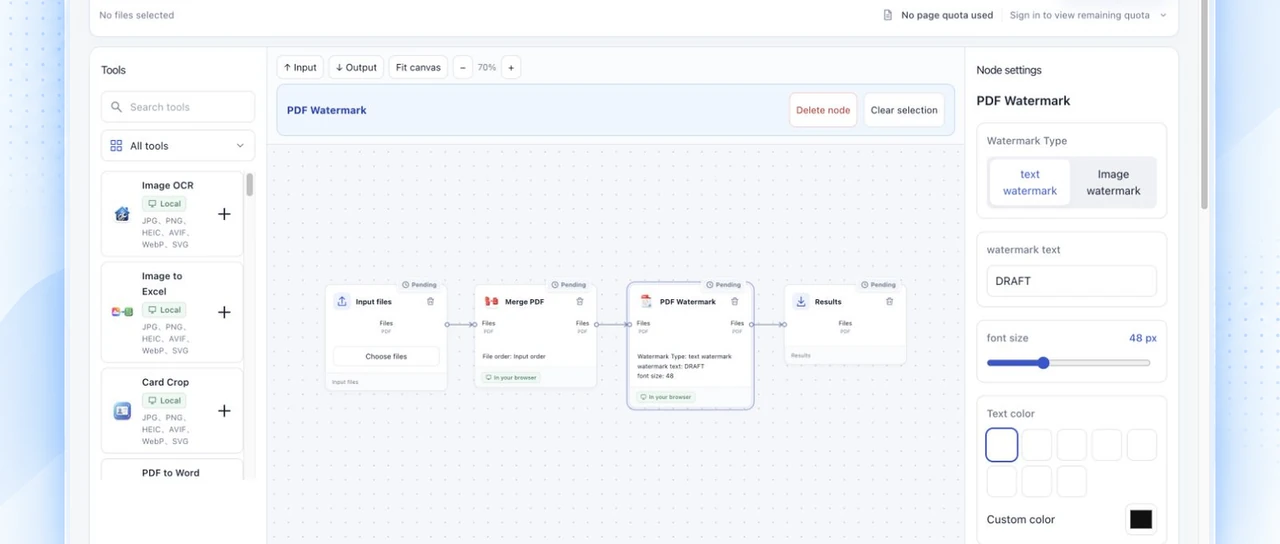
Use this workflow with your files
Choose files, adjust settings and complete the steps in order.