

Browser-local toolsCommon PDF and image tasks run on your device.
41 file-processing toolsOnline PDF, OCR
Online PDF, OCR
and image tools
Find PDF, OCR and image tools by task. Check processing location, uploads and available trials before starting.
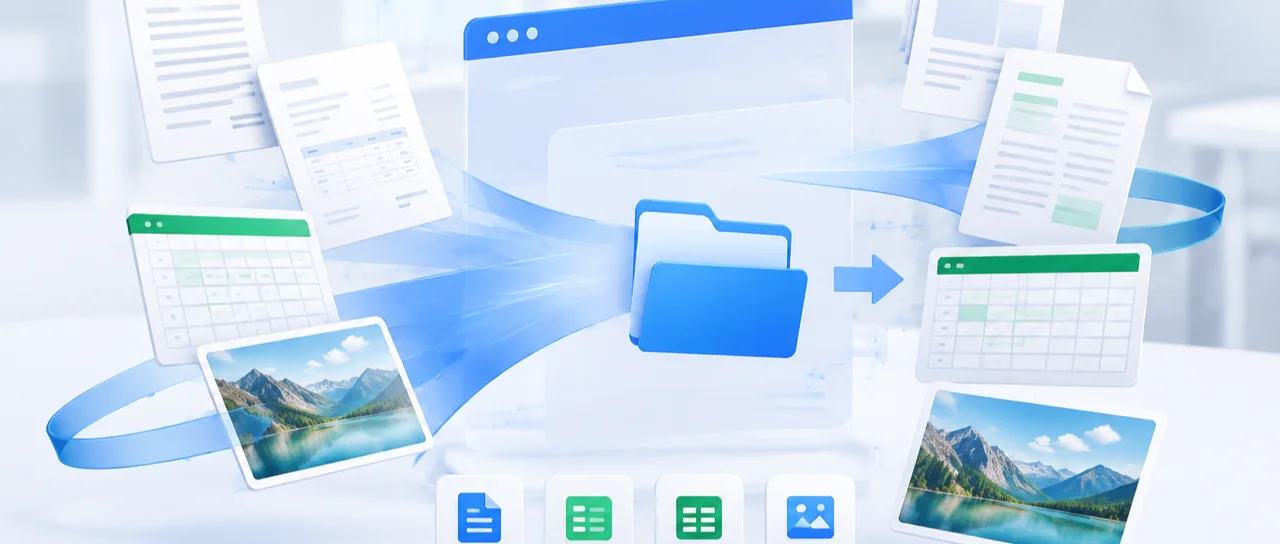
Popular tasksStart here
View allPDF to WordConvert PDF files to editable Word documentsImage to PDFConvert images to PDF documentsImage EXIF CleanBatch remove EXIF/XMP metadata from images
Know where your file goesEvery tool is labeled local, cloud or hybrid before processing.
Choose by file type
What do you need to process?
Find PDF, OCR and image tasks in three categories.







Processing and access
Local or cloud? Know before you start.
The location depends on the tool. Each workspace repeats the location, trial and membership quota before processing.
Browser-local tools
Most PDF page edits, image conversions and privacy cleanup run on the current device.
Browse local tools →Cloud conversion and AI
Office conversion and selected AI tasks require upload; trials or daily quota are shown first.
View plans and quota →Start with the outcome
You should not need to know a tool name.
Choose a familiar task and see the best-fit tool, its input, settings and output before you begin.
Common office tasks
Find a tool by taskSee the path from file to result.
Each path shows the input, the important checkpoint and the deliverable—not only a feature claim.
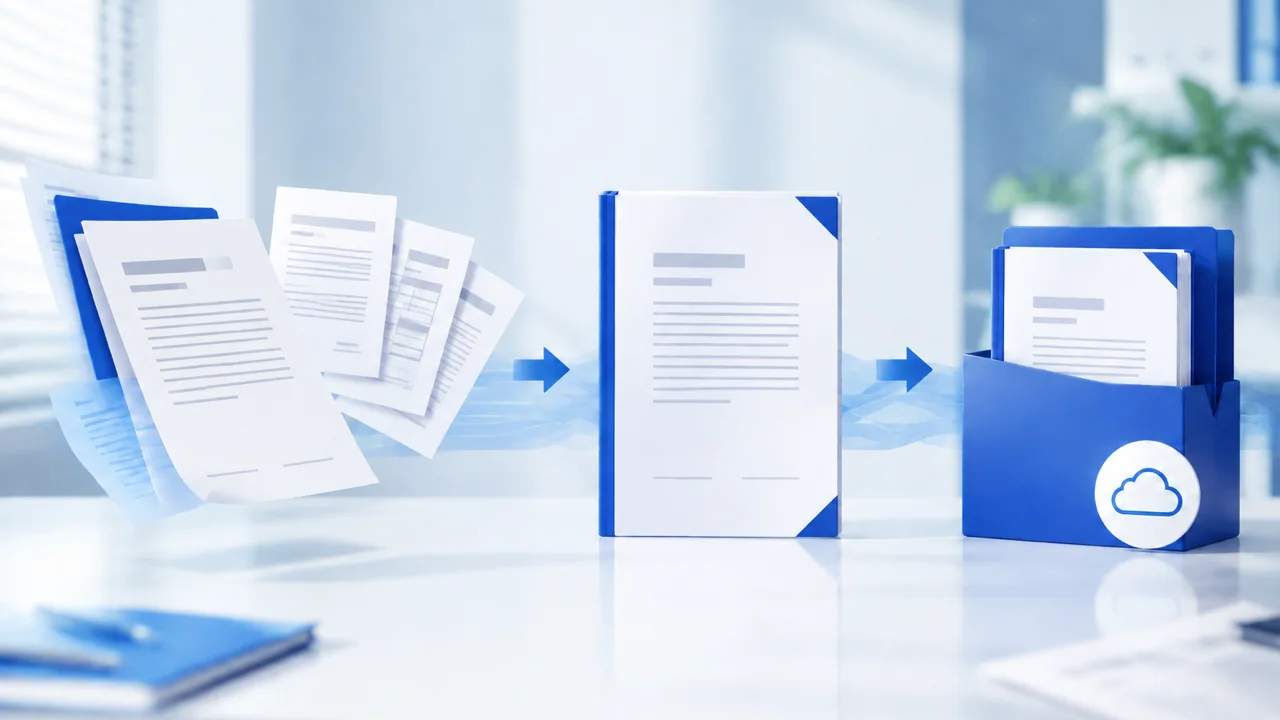
Contract + exhibits→Order and merge→One PDF
Preview file order, then clean metadata or add a password before delivery.
Open PDF merge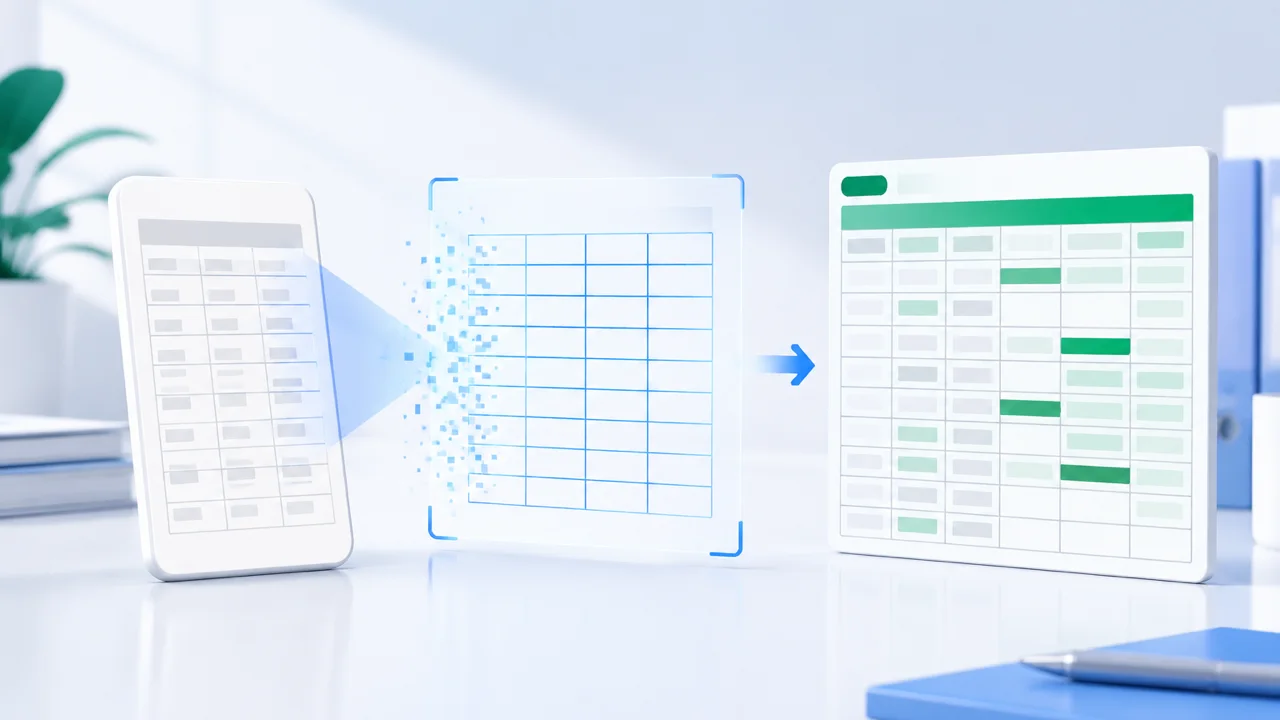
Table screenshot→Review OCR→Excel sheet
Keep the table structure and turn image data into a sheet you can filter and calculate.
Open image to tableFAQ
Confirm these details before you start.
Every workspace repeats the relevant processing location, format, quota and output.
More questions? Contact usIs OOCCRR only an image OCR website?
OOCCRR provides PDF, OCR and image tools. Browse tools by category or search for a specific task, such as merging PDFs or converting images to Word.
Which tools can I use for free?
Browser-local tools are free and need no sign-in. They do not use cloud trials or daily quota; each tool shows its processing location before you start.
Do I need to register or sign in before using a tool?
Local tools can be used without signing in. Office conversion, AI image processing, and some advanced modes require server computing, so you must sign in to use a free trial or membership entitlement. The workbench shows your available entitlement before a task starts.
Will my files be uploaded to a server?
It depends on the tool. Tools marked “Local” process files in your browser. Tools marked “Cloud” upload files to a server to complete the task. Hybrid tools explain their local and cloud modes separately so you can decide before starting.
Does OOCCRR support batch file processing?
Most tools let you add multiple files, but the file count, accepted formats, and per-file size limit vary by tool. The workbench shows the formats it accepts, whether files can be reordered, and whether a batch produces one file or a ZIP archive.
Which formats can processing results be saved in?
The output depends on the tool and may be PDF, DOCX, PPTX, XLSX, TXT, SVG, JPG, PNG, WebP, or ZIP. Every tool page describes its final output before processing, and tools with multiple modes update that description when you change the settings.
What should I do if processing fails or the result is not as expected?
First check the file format, size, password status, and current settings. Tasks that support retrying individual items keep failed items in the results area. If the issue remains, use Feedback or Contact Us and include the tool name, error message, and reproducible steps. Do not submit an original file containing sensitive information.