


Files0
Purpose-built previeweight-position page numberpreview
positionnumbering
Good for these tasks
Add Page Numbers is more than one action.
Batch number PDFs with eight positions and shared ranges These examples show common paths from input to delivery.
Deliver documents
Convert, edit or lay out files for the recipient.
Build an archive
Standardize page order, format and privacy settings.
Check before printing
Preview pages and output rules before download.
Complete Add Page Numbers in four steps
The workspace comes first; use this section when you need the full process.
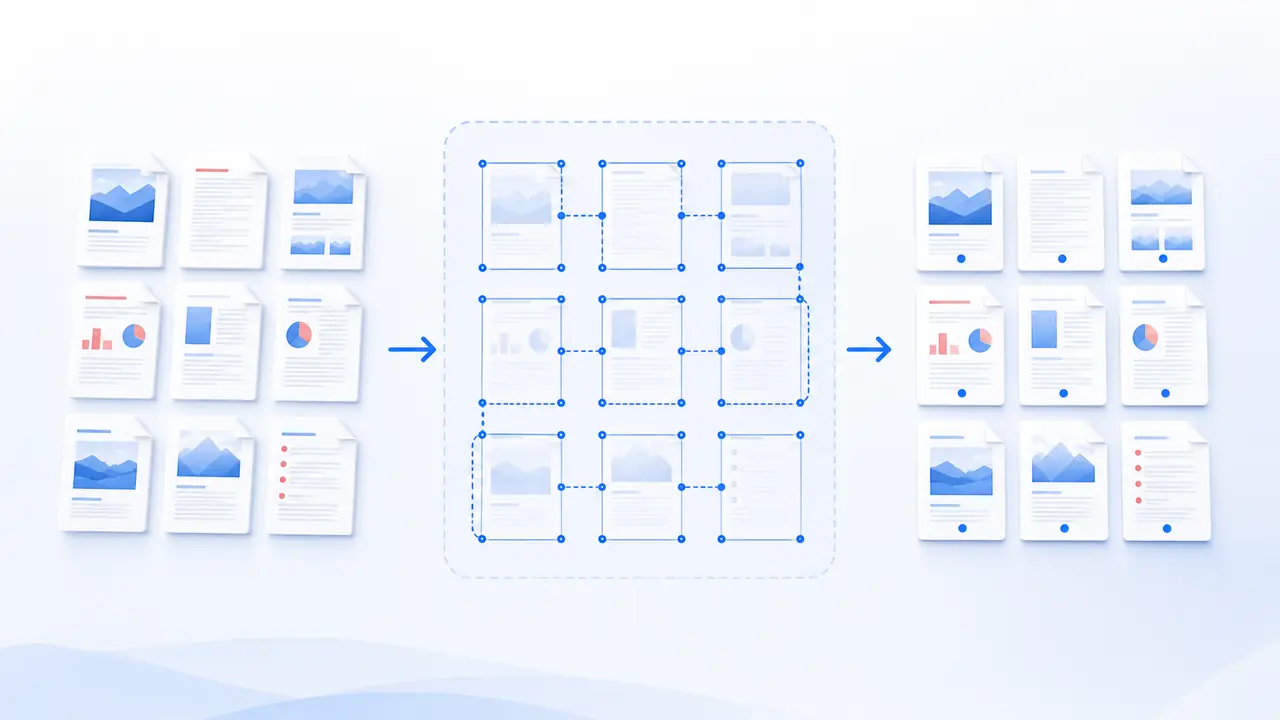
- 01Import files
Accepts PDF.
- 02Confirm settings
Review the 4 available setting groups.
- 03Start Add Page Numbers
Processing runs in this browser. Keep the page open.
- 04Download PDF/ZIP
The result is 带页码的 PDF 或 ZIP. Check its name and content before download.
Capabilities and limits
What should you know first?
Check processing location, input limits and output before you begin.
- ProcessingLocal
Files stay on this device
- File scopeBatch supported · 20
PDF
- Adjustments4 setting groups
Live workspace preview
- Final outputPDF/ZIP
带页码的 PDF 或 ZIP
Next step
View all in this categoryA related tool may fit better
Delete PDF PagesAnother option for the same type of task. · Local→Rotate PDFAnother option for the same type of task. · Local→Auto Correct PDF Orientation (AI)Another option for the same type of task. · Local→PDF Page Size to A4/LetterAnother option for the same type of task. · Local→PDF Bates Numbering ProAnother option for the same type of task. · Local→


