

←

Insert blank PDF pages

Local
Add blank pages to a PDF, preview, and download.
All tools
Files0
Files stay on this device. Your original is preserved.

Page order preview

ResultsPDF
Finish the settings, then start processing.
New pages: 0Choose one PDF to begin
ProcessingLocalFiles stay on this device
Accepted inputPDFSingle file · 50 MiB
WorkflowSingle fileLive workspace preview
OutputPDFPDF with blank pages
Good for these tasks

When to add blank pages

Add blank pages to a PDF, preview, and download.

01
Signatures and notes

Leave room after a contract page for signatures, notes, or extra details.

02
Print preparation

Add the blank pages you need at the start, end, or beside a specific page.

03
Section dividers

Separate chapters or attachments before binding or archiving.
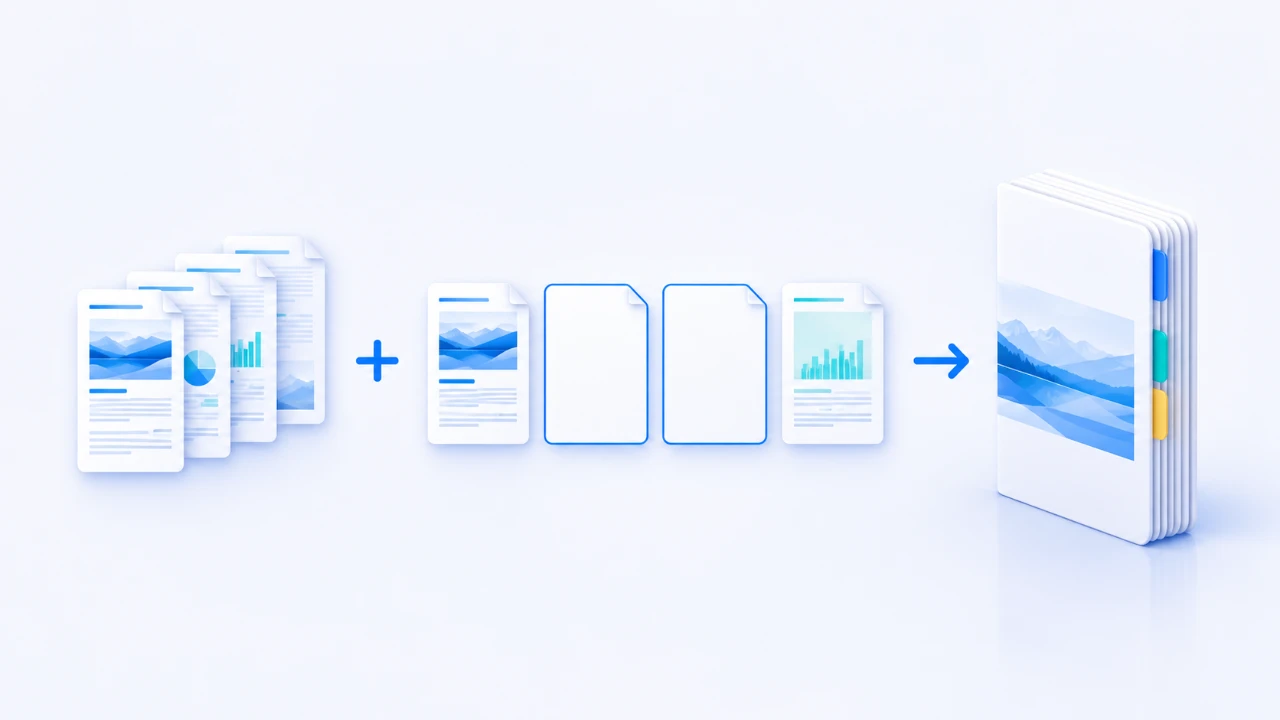
Steps

Complete Insert blank PDF pages in four steps

The workspace comes first; use this section when you need the full process.

Choose a PDF, set the insert position and count, check page order, then generate and download.
  1. 01
    Choose a PDF

    Add one PDF up to 50 MiB.

  2. 02
    Set position and count

    Choose the start, end, or an original page, then set the count and page size.

  3. 03
    Check page order

    Review the insert position, new blank pages, and total page count.

  4. 04
    Generate and download

    Download the PDF with blank pages. Your original is preserved.

Capabilities and limits

What should you know first?

Check processing location, input limits and output before you begin.

  • 01Files stay on this device. Your original is preserved.
  • 02Add 1–1,000 pages across all locations, up to 5,000 output pages; maximum file size: 50 MiB.
  • 03Bookmarks, attachments and form relationships may not be retained in the new file. Editing invalidates digital signatures.